
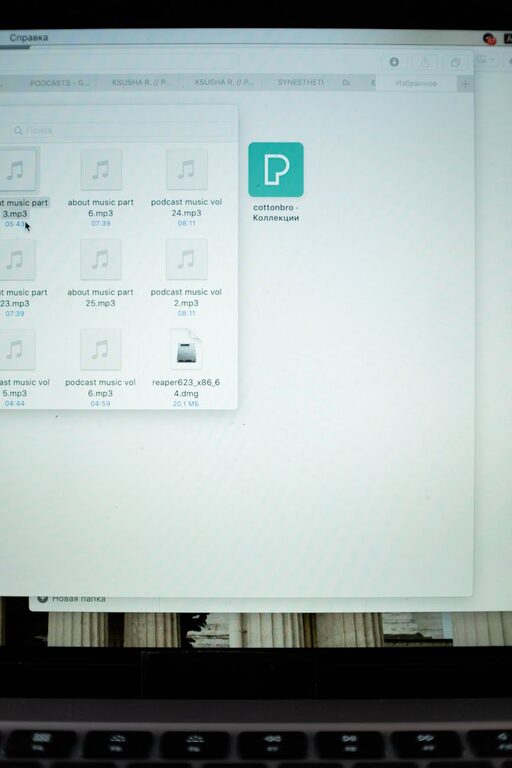
Keeping your computer files organized can save you time and reduce frustration. Whether you use your computer for work, school, or personal projects, having a tidy digital filing system makes finding documents easier and helps you stay on top of your tasks. In this post, we’ll explore practical tips for organizing your files efficiently and maintaining a neat digital workspace.
Why Organize Your Files?
Before diving into organization methods, it’s helpful to understand why file organization matters:
– Save Time: Quickly locate files without wasting time searching.
– Improve Productivity: A clear structure allows you to focus on your work.
– Reduce Stress: Avoid the frustration of misplaced or lost files.
– Backup Ease: Well-organized files are easier to back up and restore.
– Extend Device Life: Deleting unnecessary files can free up storage space.
Step 1: Assess Your Current Files
Start by reviewing what you have. Look through your desktop, downloads folder, documents, pictures, and other locations where files accumulate. Identify duplicates, outdated documents, or files you no longer need. Deleting unneeded files right away will lighten your workload.
Step 2: Plan a Folder Structure
A clear folder system is key to staying organized. Here are tips for planning your folders:
– Use Broad Categories: Create main folders for big groups like Work, Personal, School, or Projects.
– Create Subfolders: Within main folders, add more specific subfolders such as “Invoices” under Work or “Vacation 2023” under Personal.
– Keep It Simple: Avoid too many nested folders; it can get confusing.
– Be Consistent: Use the same naming style for folders (e.g., singular vs. plural, capitalization).
Step 3: Name Files Thoughtfully
File naming is just as important as folder organization. Good file names help you identify content without opening the file.
– Use Descriptive Names: Include key information like project name, date, or version number.
– Avoid Special Characters: Stick to letters, numbers, underscores, and dashes.
– Use Dates Consistently: Format dates as YYYY-MM-DD for proper sorting.
– Keep Names Short but Clear: Long names can be truncated in some views.
Example:
`Invoice_ClientA_2024-05-15.pdf`
Step 4: Use Tags and Metadata
Many operating systems allow you to add tags or comments to files. Tags can group files across folders by topic or priority.
– On Windows, use the Properties dialog to add tags.
– On Mac, use Finder’s Tags feature to color-code and label files.
This technique adds flexibility for searching and sorting without moving files.
Step 5: Organize the Desktop and Downloads Folder
The desktop is often a catch-all for quick saves, and the downloads folder tends to accumulate clutter. Regularly empty these areas:
– Move important files from the desktop to proper folders.
– Sort downloaded files into folders immediately or schedule weekly cleanup.
– Use subfolders in Downloads for categories like Software, Receipts, or Images.
Step 6: Use File Management Tools
Consider using file management tools to streamline organization:
– File Explorer (Windows) and Finder (Mac): Both have search, sort, and tagging features.
– Third-party apps: Tools like FreeCommander, Total Commander, or Path Finder offer enhanced management options.
– Cloud Services: Google Drive, OneDrive, and Dropbox allow online organization and access from multiple devices.
Step 7: Back Up Your Files Regularly
An organized system is useful only if your files are safe. Use one or more backup methods:
– External hard drives
– Cloud backups
– Automated backup software
Schedule backups weekly or monthly, depending on your file update frequency.
Step 8: Maintain Your System
Organization isn’t a one-time task. Set habits to keep your system tidy:
– Sort new files as soon as you create or download them.
– Review folders monthly to archive or delete outdated files.
– Avoid saving files directly on the desktop or root folders.
– Use consistent naming and folder structures with all new files.
Bonus Tips
– Use shortcuts: Create shortcuts to frequently used folders for easy access.
– Leverage search: Learn how to use search operators in your OS to find files faster.
– Clean up duplicates: Use tools like CCleaner or Duplicate Cleaner to identify duplicate files.
—
By following these tips, you’ll develop a clear and manageable file organization system that saves you time and reduces digital clutter. With a bit of routine maintenance, your computer will stay organized and efficient for years to come!